
Workbench layout
The centre of the window is a workbench: a tree of tab groups separated by resizable splitters. You manipulate it exactly as you would a code editor’s.
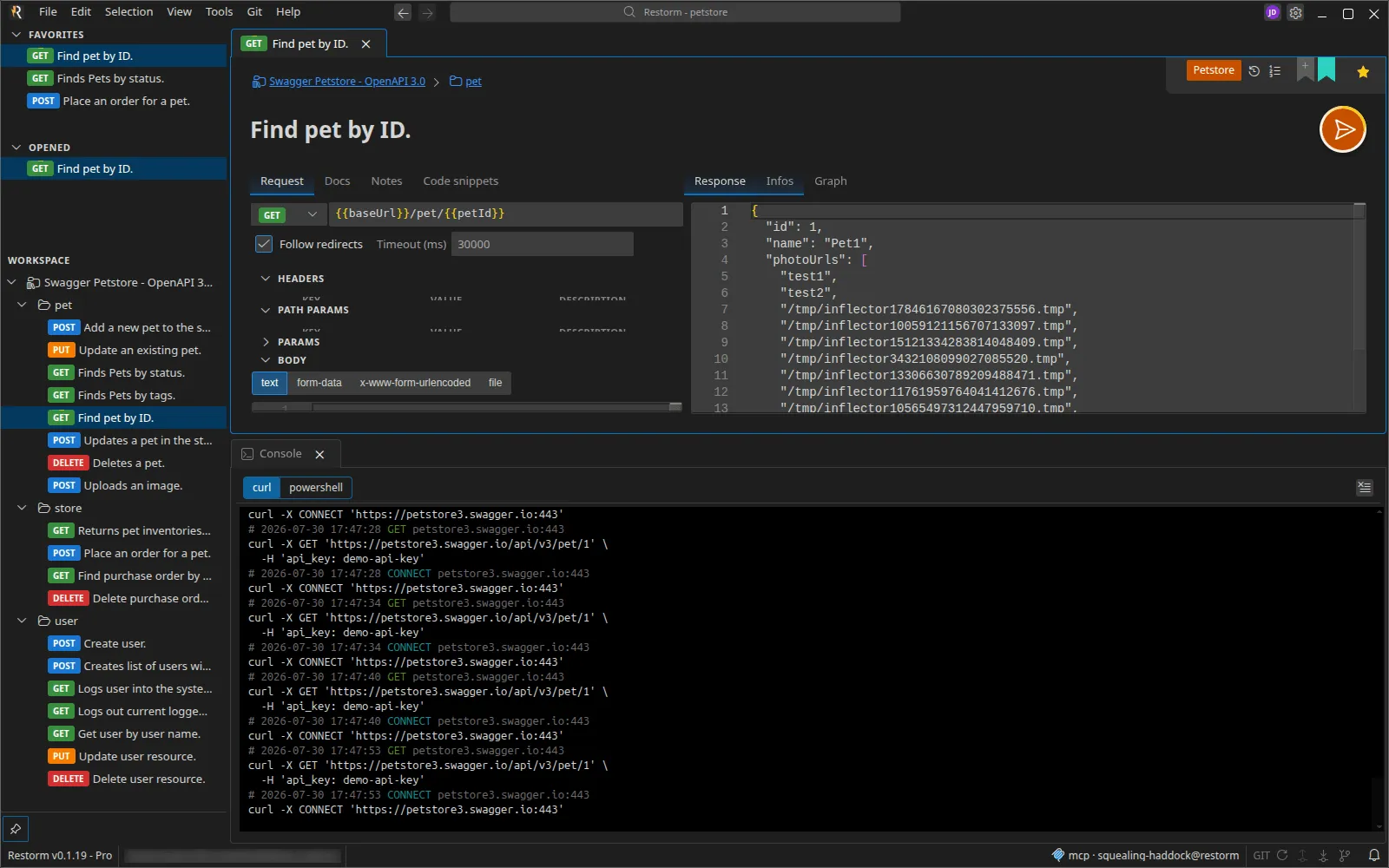
Splitting the view
Section titled “Splitting the view”Drag a tab and drop it:
- on another tab or in the centre of a group → it joins that group;
- on an edge (left, right, top, bottom) → it creates a split.
A vertical split places the groups side by side; a horizontal split stacks them. Every splitter can be dragged with the mouse to readjust the proportions.
A tab can also be detached into a new window.
Reordering
Section titled “Reordering”Drag a tab within its own group to change its position.
Maximising
Section titled “Maximising”Double-click a tab header: it goes full screen over everything else. Esc
brings it back. Only one tab at a time can be maximised.
Switching tabs
Section titled “Switching tabs”Ctrl+Tab and Ctrl+Shift+Tab open a picker ordered by most recent use:
releasing Ctrl confirms, Esc cancels.
Closing the active tab activates the most recently used one, across all groups — and moves the focus to its group if need be.
State is preserved
Section titled “State is preserved”A tab that is moved, reordered or maximised keeps its instance: an HTTP response still loading, an unsaved edit, your scroll position or the active sub-tab are never lost. That is the opposite of the usual behaviour of a web interface, and it is deliberate.
The layout is persisted
Section titled “The layout is persisted”The tab tree is saved per project. Reopening a project restores the same tabs, the same splits, and even the mini browser’s URL.
”Unique” tabs
Section titled “”Unique” tabs”Five surfaces open as a single instance, from the View menu:
| Tab | Menu |
|---|---|
| Console | View ▸ Console |
| Firewall | View ▸ Firewall |
| Mini browser | View ▸ Mini browser |
| Settings | View ▸ Settings |
| MCP logs | View ▸ MCP logs |
Opening the Console for the first time automatically places it in a new group below all the others, spanning the full width.
Driving the layout over MCP
Section titled “Driving the layout over MCP”Three tools (Pro edition) let an agent read and rebuild the layout:
get_workbench_layout, set_workbench_layout and set_tab_maximized. See
MCP tools.