
Building a scenario
The editor
Section titled “The editor”The canvas in the centre, the add palette and the inspector around it. Boxes are moved with the mouse, and the view pans and zooms.
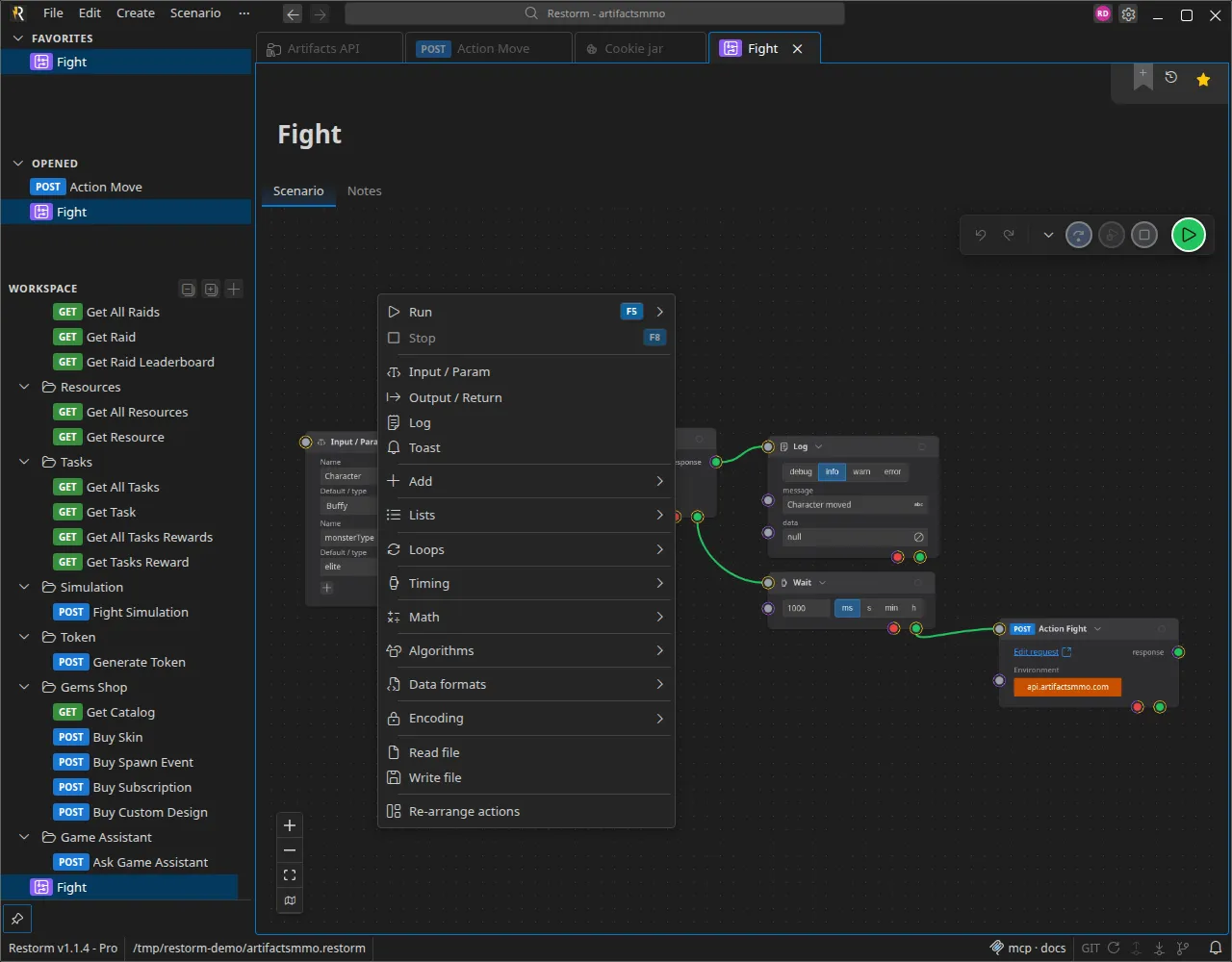
Adding a box
Section titled “Adding a box”From the palette, organised by category: control, composition (requests and connections), lists, loops, time, maths, algorithmics, data formats, encoding, interface, utilities.
An action bound to a request (HTTP Request, SOAP Request, all the connection actions) asks you to designate the project request it drives.
The scenario ↔ request link
Section titled “The scenario ↔ request link”Designating a request in an action creates a strong link: the action references the request by its identifier, not by a copy. What follows from that:
- the request stays shared — changing it (URL, headers, body) changes what every scenario that uses it plays, on their next run;
- the link survives renaming or moving the request within the tree: it rests on neither the name nor the path;
- from the request, the smartbar carries a “Used in scenarios” button — it lists the scenarios that call it and lets you jump to them. That is the reflex to have before modifying a shared request;
- a missing request (deleted, or absent when the project is opened) fails the scenario’s validation: the play button stays blocked and the offending box is flagged — never a silently broken scenario.
To replay the same request without touching its saved version, do not modify it: use the overrides (quick setting, action overrides, link) described in Overriding a request.
Configuring a box
Section titled “Configuring a box”Every box has its own fields, typed directly on the box or in the inspector. The fields accept typed values — string, number, boolean, date, Handlebars expression, variable, custom list, secret… — see Variables and environments.
Ctrl+Space triggers variable and helper autocompletion in the fields that
support it.
Wiring
Section titled “Wiring”Drag from an output port to an input port.
Two rules worth knowing:
- An input port accepts only one link — except the
inport, which accepts as many as you like and then acts as a barrier. - A pure-signal output cannot feed a pure-value input. Everything else is allowed: an output that carries a value also serves as a trigger.
Details: Ports and links.
The link selector
Section titled “The link selector”A link can carry a selector: a path applied to the value in transit.
data.items[0].idbody['user-id']statusThis is what saves you inserting a transformation box between every call and its consumer. The selector is set when the link is created or later on; emptying it removes it.
Overriding a request
Section titled “Overriding a request”An action bound to a request can modify it without touching the request itself. Four layers, in this order:
- the request as it is saved;
- a quick setting (quick config) designated on the action — this is how you reuse a saved variant of a request directly inside a scenario, without typing it again;
- the overrides entered on the action;
- the value arriving through a link on the override port.
That is the clean way to replay the same call with three data sets.
Replaying on every event
Section titled “Replaying on every event”A box’s context menu offers “Play on each event received”. When enabled, the option turns every wired input into a non-blocking “or” gate: the box re-triggers on every value received on any port, instead of waiting for all of them to be there.
That is essential for handling a stream (every MQTT message, every SSE event), and it is also what unblocks a completion cycle.
Parameters and outputs
Section titled “Parameters and outputs”- An Input / Param box declares the scenario’s parameters. They are supplied
at launch, on the command line (
--param name=value), or asked for at run time in interactive mode. - An Output / Return box exposes a result to the caller — useful when the scenario is called by another one through the Run scenario action.
Organising
Section titled “Organising”Restorm can tidy a graph automatically (auto-layout); the boxes remain
movable by hand afterwards. Ctrl+Z undoes, Ctrl+Shift+Z redoes.
Validating
Section titled “Validating”The play button is blocked as long as validation errors remain: an invalid link, a missing request, an empty mandatory field. The offending boxes are flagged.