
Accessing and updating an imported API's documentation
When you import a specification, Restorm does not only create requests: it keeps the API’s documentation — descriptions, models, security schemes, examples, enumerations — and attaches it to the environment folder the import created.
Reaching the documentation
Section titled “Reaching the documentation”The environment folder’s Docs tab
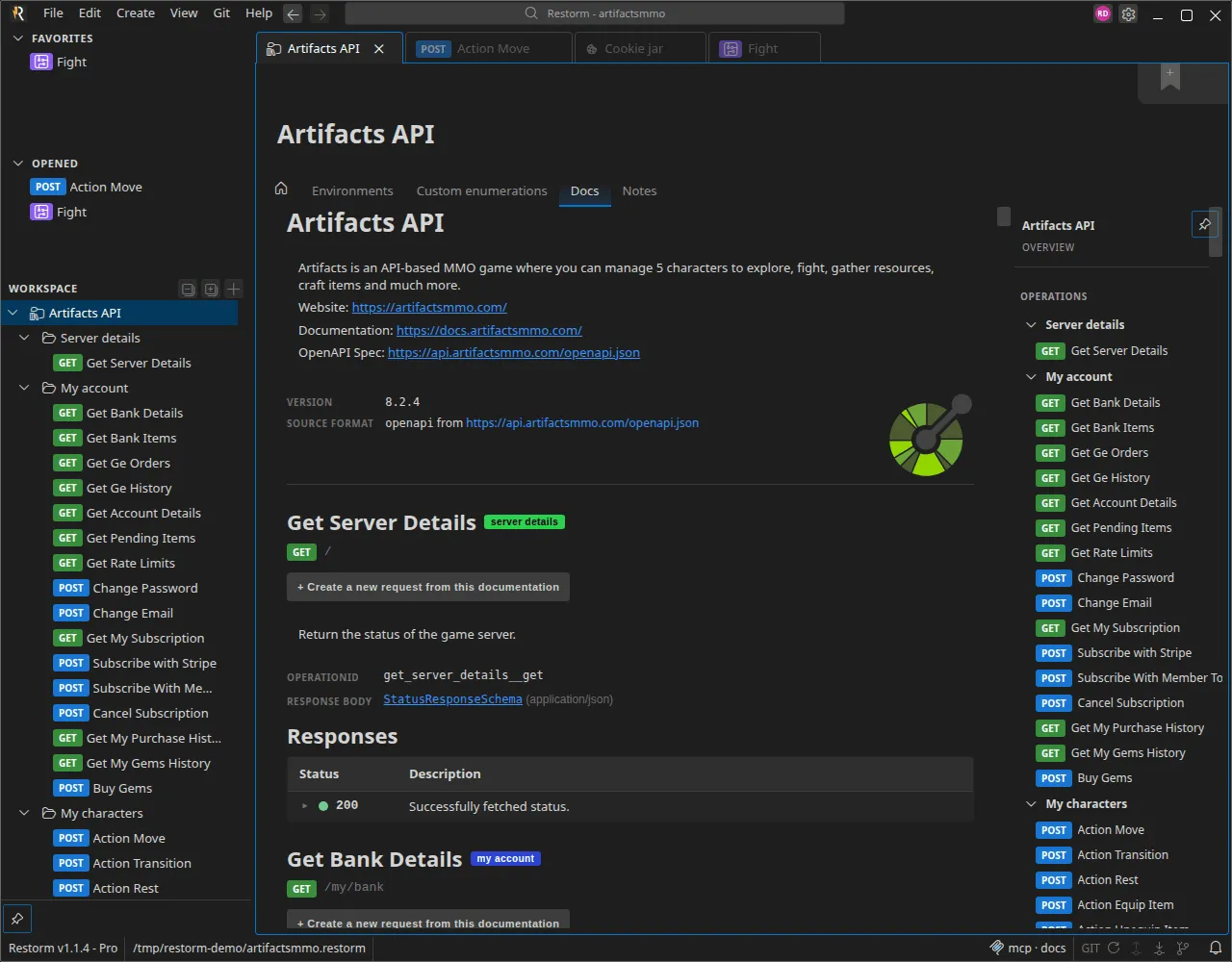
Section titled “The environment folder’s Docs tab”This is the main view. Open the environment folder the import produced: its sub-tab bar carries a Docs tab, next to Environments, Custom variables and Notes.
The tab only appears if the folder came from an import — an environment folder you created by hand has no documentation to show.
The other entry points
Section titled “The other entry points”| From | What you get |
|---|---|
| A request’s Docs tab | The documentation for that one operation — with no table of contents and no general information block. It only appears if the operation is found in the specification |
| A plain folder’s Docs tab | The documentation restricted to the operations that folder holds |
| The environment folder’s home sub-tab | The View documentation card — “Browse the API documentation, models and endpoints” |
| The welcome screen (API card) | The Documentation quick link |
| The title bar’s search engine | A documentation preview when you hover a result |
What the view contains
Section titled “What the view contains”From top to bottom:
- the API’s title and its description;
- an information block:
Version,Source format(with a link to the source URL),Server(schemes, host, base path),Contact,License,Terms of service,External docs; - one section per tag, with its description;
- one block per operation: method and URL, summary, group badge, a
deprecatedbadge where applicable, aSecuritysection (scheme type, OAuth 2 flows, scopes), and a collapsibleExample payload; - the
ParametersandResponsestables (status codes are colour-coded); Models— an interactive graph of the schemas, navigable and zoomable;Polymorphism— theoneOf/anyOf/allOfcompositions;Enums— the enumerations, merged with the folder’s own.
Creating a request from the documentation
Section titled “Creating a request from the documentation”Every operation block carries a + Add button that creates a request pre-configured for that operation. That is the shortest route when an import was partial, or when an operation has just appeared in the specification.
Navigating and searching
Section titled “Navigating and searching”A table of contents is anchored on the right — Overview, Operations, Models, Enums sections — collapsible and resizable. Clicking a model scrolls to the graph and centres the matching node in it.
| Shortcut | Effect |
|---|---|
Ctrl+F / Cmd+F | Opens search within the documentation |
F3 / Enter | Next match |
Shift+F3 / Shift+Enter | Previous match |
Esc | Closes the search |
A counter shows your position within the results.
Updating the documentation
Section titled “Updating the documentation”A specification changes. Restorm can go and fetch the source again and apply the delta — documentation and requests — without overwriting your work.
Where the button is
Section titled “Where the button is”Two entry points, equivalent to one another:
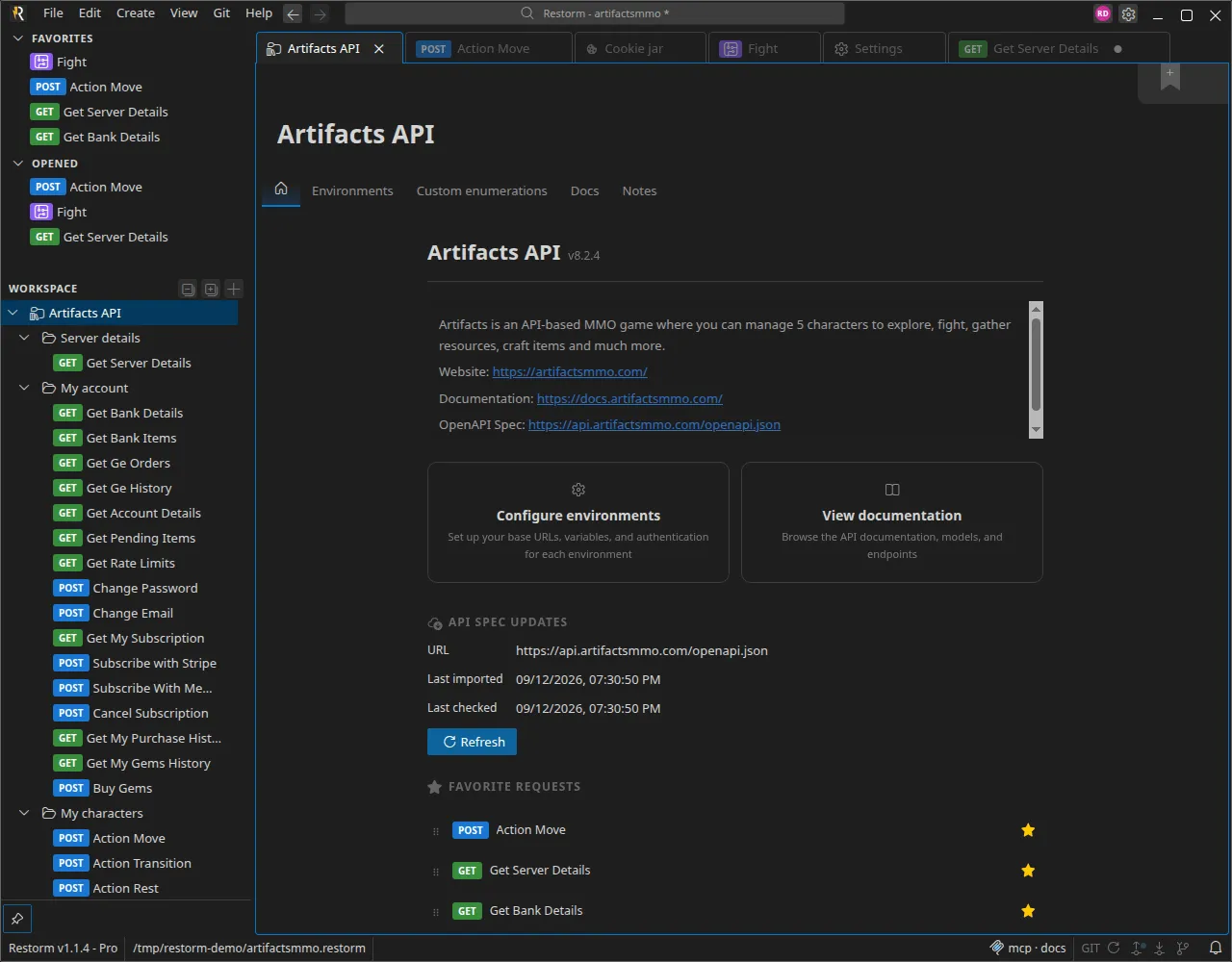
- the environment folder’s home sub-tab, Spec updates section — it shows
the
URL, theLast importand theLast check, and carries the Refresh button; - right-clicking the folder in the sidebar tree → Refresh.
What happens
Section titled “What happens”- A “Refreshing spec…” window appears while the source is fetched. The URL’s
and the headers’
{{variables}}are resolved, and the attached authentication route is played first. - Restorm compares a fingerprint of the fetched source with the one recorded at the last import.
- Nothing has changed → “The API spec is up to date.”, and that is that.
- Something has changed (or the fetch failed) → the re-sync wizard opens.
The wizard
Section titled “The wizard”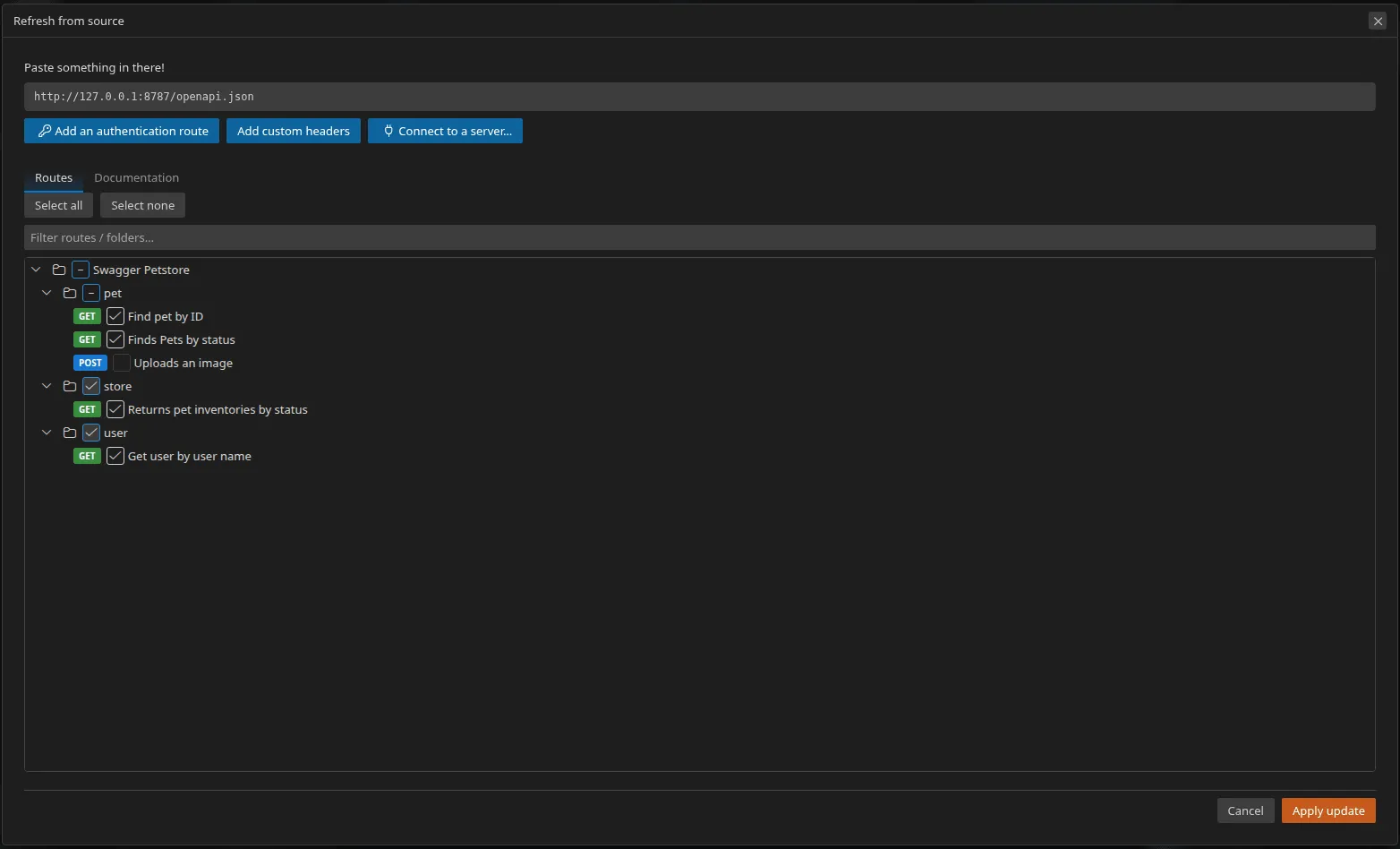
- The source URL is shown read-only.
- A pill lets you attach, change or detach an authentication route, and a Custom headers submenu lets you add fixed headers replayed on every refresh.
- Two preview tabs:
- Routes — the tree of operations found in the new version, with a filter and a selection. Operations already present in your folder are locked and always ticked; you only choose which of the new ones to add;
- Documentation — the new version’s documentation, read-only, before you confirm.
- The confirm button shows the number of new operations selected, for example Apply update (3).
What is changed, and what is not
Section titled “What is changed, and what is not”This is the important point: the specification has authority over what it describes, you have authority over the rest.
| Element | Behaviour |
|---|---|
| A request’s name | Never changed |
| Method and URL | Never changed |
| Existing parameters, headers and path parameters | Kept as they are — value, description, enabled state |
| Parameters added by the specification | Added, with the specification’s default value or empty |
| Parameters removed from the specification | Kept on the request |
| A new operation | Added where a fresh import would have placed it (tag folder included) |
| An operation marked deprecated by the specification | Flagged; it appears dimmed in the tree |
| An operation that has vanished from the specification | Flagged as removed; it appears struck through in the tree, remains runnable and is never deleted |
| API documentation and enumerations | Replaced entirely by the new version — that is what refreshes the Docs tab |
Nothing is ever deleted from your tree: an operation that disappears from the source is marked, not erased.
If the source requires authentication
Section titled “If the source requires authentication”A 401 or 403 response opens the wizard with the error message shown as it is
(for example HTTP 401: Unauthorized). Attach an
authentication route or add fixed headers,
and the preview is run again.
Re-syncable formats
Section titled “Re-syncable formats”Twelve formats have re-syncing: Swagger 2.0, OpenAPI 3.x, GraphQL, gRPC, SOAP (WSDL), OData, AsyncAPI, Postman, Insomnia, Bruno, OpenRPC and Smithy.
For all the others, a new import creates a new tree. The complete list is in Updating from the source.