
The interface
The Restorm window reads as five zones.
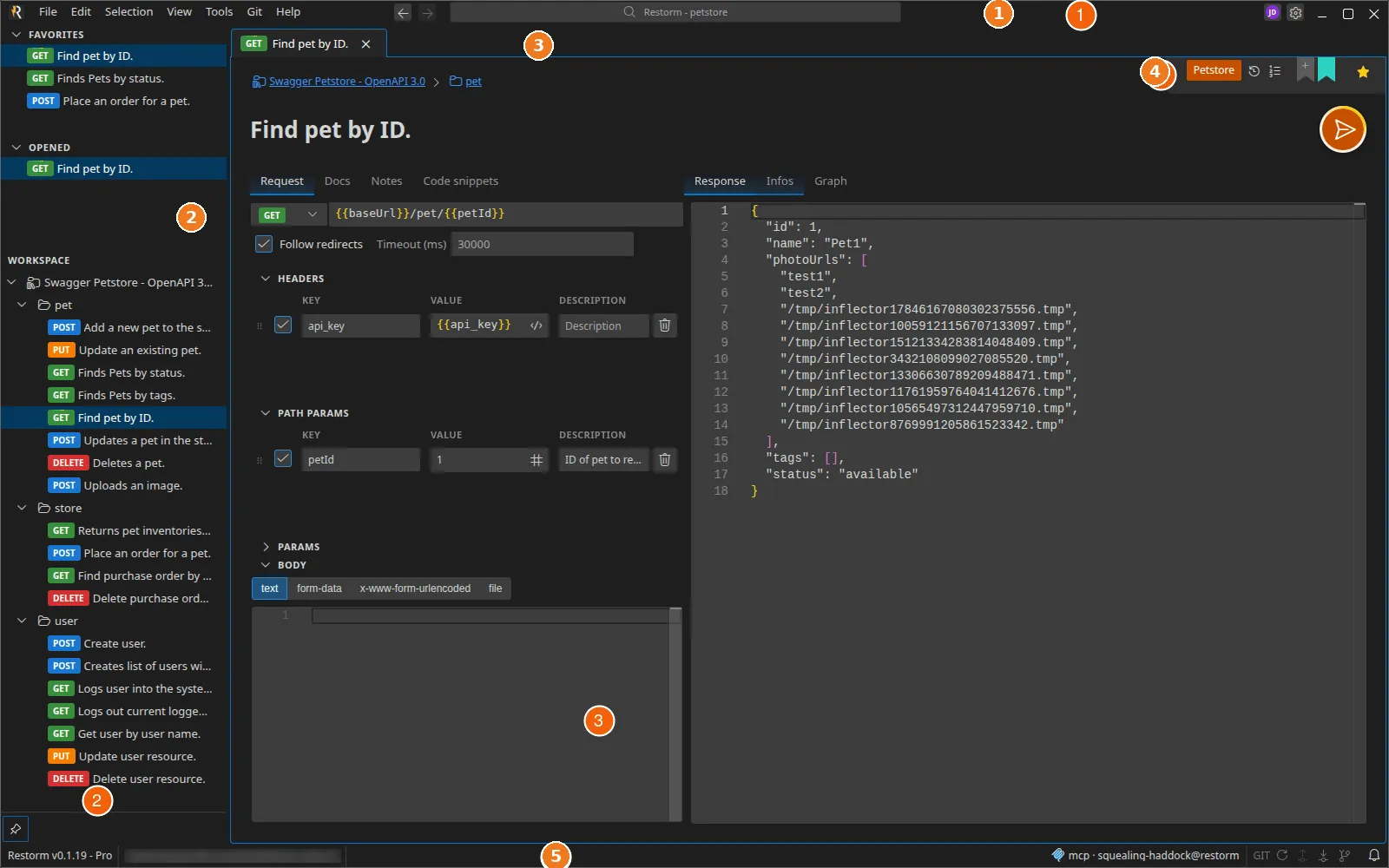
1. The title bar
Section titled “1. The title bar”It carries the menu bar (File, Edit, View, Git, Help), the project’s search bar in the centre — see The search engine — and, on the right, the Account button.
The most used entries:
- File ▸ New / Open / Open folder / Import / Save, plus Recent files and Favorites;
- View ▸ Settings, Console, Firewall, Mini browser, MCP logs — these five surfaces open as workbench tabs;
- Git ▸ Refresh, Push, Pull, History.
2. The sidebar tree
Section titled “2. The sidebar tree”Three stacked, collapsible panes:
- Favorites — only shown once you have some; reorderable by drag and drop. See Favorites;
- Opened — the items currently open in a tab;
- Workspace — the project tree: folders, environment folders, requests, scenarios.
Two header buttons: Add request and Collapse all requests. The context
menu gives you Add ▸ (folder, environment folder, one entry per protocol,
server, scenario), Rename (F2), Clone (Ctrl+D), Delete (Del) and
favouriting.
3. The workbench and its tabs
Section titled “3. The workbench and its tabs”The centre is a workbench: a tree of tab groups separated by resizable splitters.
- Dragging a tab reorders it, moves it to another group, or — dropped on an edge — creates a split (side by side or stacked).
- Double-clicking a tab header maximises it;
Escbrings it back. Ctrl+Tab/Ctrl+Shift+Tabopen a tab picker ordered by most recent use.- The layout is saved per project: you get your tabs back, your splits, even the mini browser’s URL.
A moved tab keeps its state: a response still loading, an unsaved edit or your scroll position are never lost.
Details: Workbench layout.
4. The tab’s smartbar
Section titled “4. The tab’s smartbar”At the top of every request tab: environment picker, call history, quick settings, tag ribbons, authentication route picker and the favourite star. See The smartbar.
Below it: a clickable breadcrumb, then the request’s editable title. Below that again, the row of action pills, including Send (or Listen in server mode).
5. The status bar
Section titled “5. The status bar”From left to right:
Restorm v<version> — <Plan>: the version and your edition (Community / Pro / Enterprise);- the git indicator (Push / Pull buttons, with a badge when there is something to exchange);
- the MCP indicator, which blinks on every agent call and lets you suspend the server or open the logs.
Themes
Section titled “Themes”Restorm ships fourteen themes (nine dark, five light). You switch in Settings ▸ Appearance ▸ Theme; the change is applied live, with no restart. See Themes.