
The smartbar
At the top of every request tab, on a dedicated background strip, sits the smartbar: the group of commands that act on the request without touching its configuration.
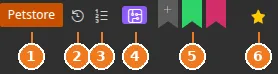
What it holds, from left to right
Section titled “What it holds, from left to right”1. The environment picker
Section titled “1. The environment picker”A coloured badge and the active environment’s name. Its popover shows the environment folder’s environment tree plus an “Apply to all requests” tickbox to switch the whole folder in one go.
2. History
Section titled “2. History”A clock — Request history. Opens the modal of this request’s past responses. See Request history.
3. Quick settings
Section titled “3. Quick settings”Save / reload a complete variant of the request. See Quick settings.
4. Used in scenarios
Section titled “4. Used in scenarios”A reverse navigation button: it lists the scenarios that call this request and lets you jump to them. Essential before modifying a shared request.
5. Tags
Section titled “5. Tags”The request’s tags, rendered as coloured ribbons. From the ribbon you can rename the tag, change its colour, remove it, or add another one. Colours are saved in the project, so they are shared.
An authentication route picker slots in between the tags and the star when the environment folder offers at least one authentication (No authentication by default; hidden if it offers none). See Authentication.
6. The favourite star
Section titled “6. The favourite star”Anchored at the far right. See Favorites.
Just below
Section titled “Just below”- a breadcrumb line: the request’s ancestors, clickable (middle-click to open in the background);
- the title line: icon picker and title editable in place;
- possibly a warning banner — for instance on a request marked deprecated by an import re-sync.
Not to be confused with
Section titled “Not to be confused with”The row of round pills placed under the strip — including Send (or Listen in server mode) — is not the smartbar. It is rendered separately so that it does not move when the response panel opens: the button stays under your cursor between two sends.